
Migrating to QuickBooks Online can simplify your bookkeeping, but not all data transfers automatically. Knowing what moves, what needs to be rebuilt, and which migration method fits your current software can help you avoid errors and make the transition smoother.
What Data Transfers to QuickBooks Online?
Most QuickBooks Online migrations can transfer up to two years of historical transaction data, along with customer and supplier information, invoices, bills, and basic company details. However, recurring journal entries, attachments, payroll history, bank reconciliations, custom reports, and third-party integrations may need to be recreated manually.
The exact results depend on your current accounting software and the migration method you use.
Consider the Following Data Required for Migration
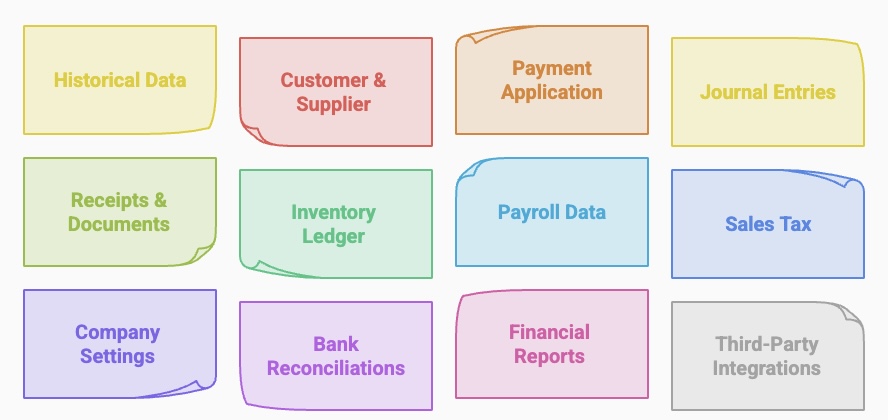
Historical Data – How Far Back Does It Go?
Most migrations to QBO bring in up to two years of historical transaction data. If you need more than that, you will need a custom migration service or manual data entry. Bank feeds will only bring in what your bank allows, typically 90 days of transactions.
Customer & Supplier Lists
QBO transfers names, addresses, emails, and phone numbers from your customer and supplier lists. However, custom fields and customer or supplier notes do not migrate and must be manually re-entered. This can help manage accounts receivable and accounts payable.
Payment Application for Invoices & Bills
If invoices and bills are fully paid, payments usually transfer correctly. Partially paid invoices or overpayments may require manual adjustments in QBO after migration.
Recurring Journal Entries
Recurring journal entries do not transfer automatically. If you rely on recurring entries, you will need to recreate them manually in QBO.
Saved Receipts & Documents
If you have attached receipts or documents in your previous software, these do not migrate and must be re-uploaded to QBO manually.
Inventory Ledger & Costing
- Inventory names, SKUs, and quantities may transfer.
- However, historical inventory transactions and adjustments do not.
- QBO uses FIFO (First-In, First-Out) for inventory valuation, which may differ from the average cost or LIFO method used in other systems.
- If you use Bill of Materials (BOM), note that QBO does not support it natively, and you may need QuickBooks Online Advanced or a third-party integration.
Payroll Employee Data
Employee names, addresses, and emails transfer, but payroll history, direct deposit information, and settings do not. Payroll will need to be reconfigured manually.
Sales Tax Codes in Each Transaction
QBO attempts to map sales tax codes from your previous system, but results may vary. A manual review is recommended to ensure compliance with your local tax authorities.
Company Settings
Basic company details, such as name, address, and industry, transfer to QBO. However, custom settings, automation rules, and user permissions do not and must be set up again.
Bank Reconciliations
Historical bank reconciliations do not migrate to QBO. You will need to perform a fresh reconciliation once the migration is complete.
Custom Financial Reports & Scheduled Reports
QBO does not transfer custom financial reports or scheduled reports from your previous accounting software. These must be manually recreated in QBO.
Integrations with Third-Party Applications
If your current accounting software is integrated with third-party apps (e.g., payment processors, CRM, inventory management), these connections do not transfer and must be reconfigured manually.
Every accounting system stores data differently, and choosing the wrong migration approach can result in missing transactions, inaccurate balances, or unnecessary cleanup work. At Purpose CPA, we help businesses migrate to QuickBooks Online with minimal disruption, ensuring your financial records remain accurate from day one.
What Can Go Wrong During a QuickBooks Online Migration?
When historical data is imported into a new accounting system, errors can occur, including duplicate transactions, incorrect balances, or missing records. Review your migrated data carefully before relying on QBO for financial reporting or tax preparation.
Maintaining Access to Your Old System
If not all historical data is migrated, you may need continued access to your old system for reference, reporting, or business decision-making. Consider keeping a subscription to your previous software or exporting necessary reports before shutting it down.
Keeping Backup Data Files for CRA Audit & Year-End Preparation
For compliance and tax purposes, it is essential to keep backup copies of your old system’s data files. The Canada Revenue Agency (CRA) may request past records during an audit, and year-end financial statements may require access to prior transactions. Ensure you have secure backups before migrating.
Migrating from QuickBooks Desktop, Xero, Sage 50, Wave, and Other Platforms
Each accounting software has different migration paths:
- QuickBooks Desktop: QuickBooks provides a built-in migration tool, but some data (e.g., attachments, custom reports) will not transfer.
- Xero: Xero to QBO migration often requires third-party tools, as native support is limited.
- Sage 50: Sage users typically need Dataswitcher or a custom migration service.
- Wave: Limited direct migration options; often requires manual data entry or a conversion service.
- Other Systems: Migration feasibility depends on the ability to export/import data, requiring CSV files or a specialized conversion tool.
Considering Intuit’s Default Migration Service and Dataswitcher
Intuit offers free migration services for QuickBooks Desktop users, but it has limitations, including the number of years transferred and the loss of certain settings. Dataswitcher, a third-party service, also provides migration from Sage, Xero, and other platforms, but it is important to review what data is included and if any manual work is required post-migration.
For businesses reviewing their tax records during a software transition, our blog on business expense deductions can also help you identify records that should be retained for tax purposes.
Migrating from QuickBooks Desktop, Xero, Sage 50, Wave, and Other Platforms
The migration process varies depending on the software you currently use:
- QuickBooks Desktop: QuickBooks provides migration tools, but certain data such as attachments and custom reports may not transfer.
- Xero: Migration may require third-party tools because native migration support is limited.
- Sage 50: Sage users may need Dataswitcher or a specialized migration service.
- Wave: Migration options can be limited and may require manual data entry or a conversion service.
- Other systems: Migration depends on whether your existing software can export data in a format that QBO can import.
Intuit’s Migration Service vs. Dataswitcher
Intuit offers migration services for eligible QuickBooks Desktop users, while Dataswitcher supports migrations from platforms such as Sage and Xero. Both options have limitations, so review exactly what will transfer before beginning the migration.
Alternative: Start Fresh With a New Chart of Accounts
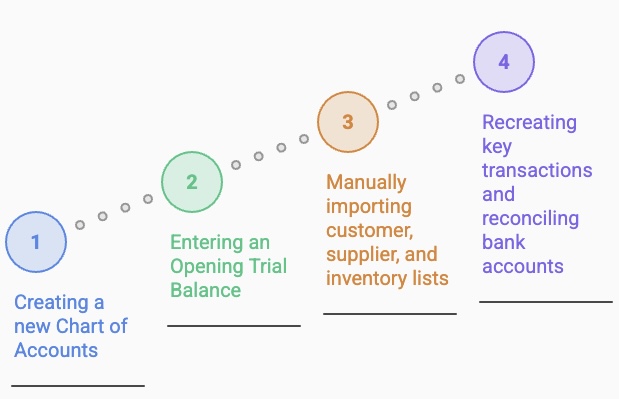
For some businesses, a fresh start may be a better option. This involves:
- Creating a new Chart of Accounts in QBO.
- Entering an Opening Trial Balance to reflect the most recent balances from your previous system.
- Manually importing customer, supplier, and inventory lists.
- Recreating key transactions and reconciling bank accounts.
This approach requires more preparation upfront but can provide a cleaner accounting file and reduce the risk of carrying historical errors into the new system. If you’re considering a clean bookkeeping setup, reviewing your bookkeeping and financial reporting process can help determine what information should be carried forward.
Conclusion
Migrating to QuickBooks Online is an opportunity to improve your bookkeeping—not just transfer your existing data. Understanding what transfers, what needs to be rebuilt, and how to verify your new QBO file can help you avoid reporting errors and unnecessary cleanup.
Purpose CPA can help you plan your migration, review transferred data, and set up QuickBooks Online to support accurate and efficient bookkeeping. Ready to make the switch? Contact Purpose CPA to discuss your QuickBooks Online migration.